Showing posts with label Software Development Tools. Show all posts

23 April 2017

Event: A look at using .NET Core on Linux

Postsharp which offers pattern-aware extension for C# and VB to makes the software development faster, is conducting a free online webinar on ".NET Core on Linux".

As per the talk agenda posted on Postsharp

the session is perfect for .NET veterans who are brand new to .NET Core and want to see what the brave new world looks and feels like. It's okay if you're unfamiliar with Linux, but are interested in having options available to you. We'll even learn how Microsoft Azure can make the heavy lifting to production much easier.

For registration follow the link below

Webinar on .NET Core on Linux

26 October 2013

measuring CPU utilization during load test

While running load and performance(LnP) for a web application, WEB API or for windows service, it's crucial to measure CPU utilization to make decisions like application code change or adding more horsepower. Using perfmon tool, CPU utilization can be measured accurately over a period of time. By default when you open the perfmon, % Processor Time counter is added by default.

Measuring CPU utilization over test run duration

Steps to measure the CPU Utilization

  • You can open the Performance Monitor by typing perfmon in Run window.
  • In the left navigation tree click "Performance Monitor" under "Monitoring Tools".
  • By default, "%Processor Time" performance counter added. This "%Processor Time" performance counter is from "Processor Information" group.
  • You can set the Duration, etc in the Performance Monitor Properties dialog.

Setting the Performance Monitor Properties

  • In the perfmon graphical display, right click and choose "Properties" menu item. It opens up the Performance Monitor Properties dialog.
  • Setting duration using Performance Monitor Properties in perfmon
  • You can configure various settings using the respective tab in the Performance Monitor Properties window.
  • For example, if you want to measure CPU utilization over 10 minutes duration, you can set this up using "Duration" setting under "Graph Elements" present in "General" tab.

16 March 2013

How Google toolbar gets page ranking

Google Page Ranking is very helpful to know how Google has rated your page. If rating is around 4 to 7, it's good. Your page will appear in top of the search results. If your page is not yet ranked by Google or the ranking is the range of 1 to 3, you can alter edit page of the page and more importantly the structure of it, so that your page become SEO friendly and earns good ranking with Search Engines.
In a previous post explained on how to enable the Google PageRank button for IE browser. In this post let's learn more on how does the PageRanking button get's the page rank from the Google servers. Sounds interesting! Read on.
Yesterday I was interested in knowing how does Google page ranking button get's the page ranking for a page.

Here are the findings on how Google toolbar gets page rank:

  • Started the Fiddler.
  • Started the IE browser and browsed rangahc.blogspot.com.
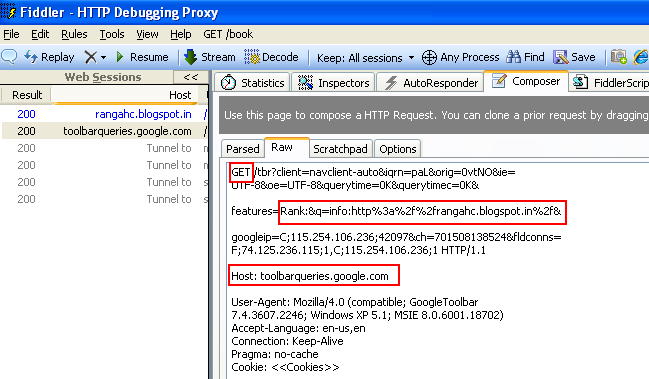
  • Looked at the Web session in the fiddler. Selected the request to toolbarqueries.google.com and went to Fiddler composer. Google Page Ranking Request in Fiddler
    Observation below:
    1. HTTP GET request made to toolbarqueries.google.com from Google page ranking tool.
    2. Query string parameters in the HTTP request tells that, Page Ranking Tool has requested "Rank" feature for the page "http://rangahc.blogspot.in".
    3. Later looked the response for HTTP request. Selected the HTTP request and went to Response raw view.

      HTTP/1.1 200 OK
      Date: Sat, 16 Mar 2013 07:51:26 GMT
      Pragma: no-cache
      Expires: Fri, 01 Jan 1990 00:00:00 GMT
      Cache-Control: no-cache, must-revalidate
      Content-Type: text/html; charset=UTF-8
      Server: gws
      X-XSS-Protection: 1; mode=block
      X-Frame-Options: SAMEORIGIN
      Content-Length: 11
      Rank_1:1:8

      Looking at the HTTP Response we can say that page rank for the page is 8.
      Note: http://rangahc.blogspot.com is not yet got any ranking. The response is for some other site.


That's about how the Google Page Rank button in the Google Toolbar get's the page ranking and displays to the user

14 February 2013

Hosts file editor to switch an environment

In software development, the built code will be promoted to higher environments to test the quality. There could be a different number of the environments based on the requirements. However, the commonly seen such environment across different projects are DEV, QA, STAGE, Pre Prod and PRODUCTION.

We can hit the Web services or web application hosted on different environments by changing the host entries on the test machine. But changing the host entries is time-consuming and error-prone. Typically testers/QAs will be changing these host entries to change the environments around 2 to 3 times in a day. This task is boring. So to get rid of this mundane task created small windows client application utility.

User interface:

Hosts file editor to change the environments

Prerequisites:

The Environment Changer Tool has prerequisites for keeping host entries in the hosts file for each environment:

  1. All host file entries for a given Environment has to be present under it. This anyway you would have already following it.For example if you have a DEV environment and have the below hoist entries, they all should like below in your host entries.

    #DEV
    111.222.333.444 webservices
    121.222.333.445 apiservices

    #QA
    #112.222.333.444 webservices
    #122.222.333.444 apiservices

  2. The different environments will be configured in the application config file(app.config file). Each environment should be separated by semicolon(;).
  3. The hosts file will located more or less at "C:\WINDOWS\system32\drivers\etc". However if need, this settings can also be set in config.
  4. The Tool is windows form application built on .NET 2.0; So the .NET framework should be present on the machine.

Host file editor application config file:

<?xml version="1.0"?>
<configuration>
  <appSettings>
    <add key="Enviroments" value="LOCAL;TEST;UAT"/>
    <add key="HostFileFullName" value="C:\Windows\System32\drivers\etc\hosts"/>
  </appSettings>
</configuration>

That's it.The tool is really simple. Just keep your host entries as per the prerequisites and you will find the tool really helpful. By using this tool you can save around 2 minutes of time, whenever you want to change environment.

The tool now can be downloaded from codeplex